
PGSharp Auto-Walk Speed Settings: 2026 Guide to Safe Speeds & Avoiding Soft Bans

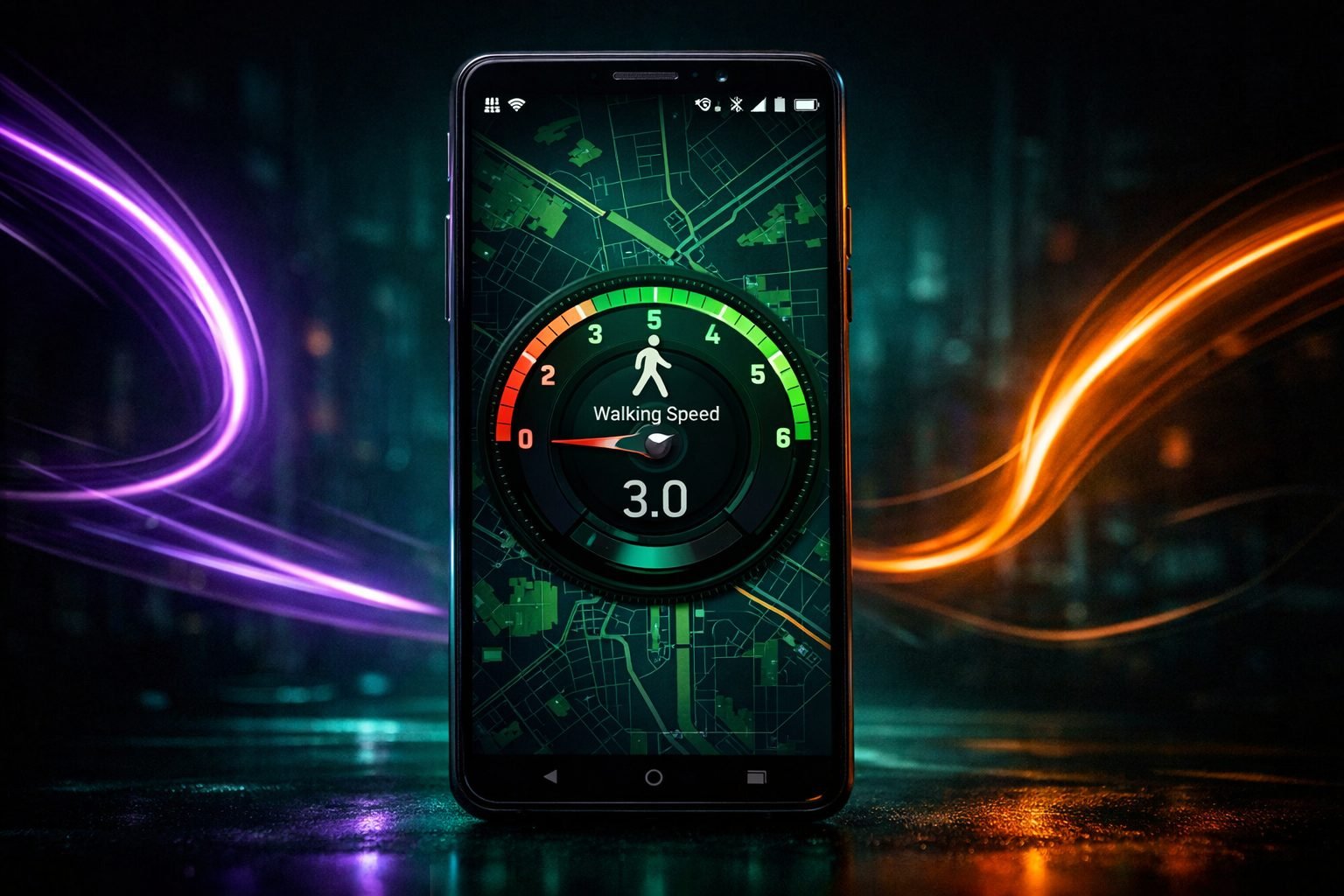
PGSharp Auto-Walk Speed Settings: 2026 Guide to Safe Speeds & Avoiding Soft Bans
PGSharp auto-walk speed settings decide how believable your movement looks to Niantic’s anti-cheat system, and getting them wrong is one of the fastest routes to a soft ban. This guide covers the actual km/h numbers people use, why the default exists, and how cooldowns interact with speed on a rooted Android setup.
Quick answer
The safest PGSharp auto-walk speed settings sit between 2 km/h and about 10.5 km/h, mimicking real walking or jogging pace. PGSharp’s default is 9.3 km/h, which most users treat as a safe baseline for general roaming, while roughly 10.5 km/h is commonly used for egg hatching. Going much above 30-35 km/h regularly, or jumping speed erratically, is what tends to draw attention from Niantic’s detection systems and trigger cooldowns or soft bans.
Need a ready-to-use rooted phone?
Choose a professionally prepared Android device built for a clean, dedicated setup—without turning your everyday phone into a test bench.
Shop rooted Android phonesAsk for buying adviceWhat the PGSharp speed slider actually controls
The speed setting in PGSharp’s menu controls how fast your avatar moves across the map when you’re using the joystick or auto-walk, measured in km/h. It’s a straightforward slider or number field, and PGSharp’s own features page describes it as letting you type in exactly how fast you want your avatar to walk. There’s no separate ‘auto-walk speed’ setting distinct from the main speed control, both the joystick and auto-walk pull from the same value.
Lower numbers (2-5 km/h) read as a slow stroll, the 9-10 km/h range reads as jogging pace, and anything past 25-30 km/h starts looking like a moving vehicle rather than a person on foot. That distinction matters because PGSharp auto-walk speed settings are one of the main behavioural signals Niantic’s systems can use to flag an account.
PGSharp’s default speed and why it’s set that way
PGSharp ships with a default speed of 9.3 km/h, which sits right at the upper end of a brisk human walking pace. It’s not a random number. Most players treat it as the safe baseline for general roaming, spinning stops and hatching eggs without needing to touch the slider at all. If you’re new to auto-walk, leaving it here for the first few sessions is the sensible move rather than immediately pushing for a faster route. Once you’ve got a feel for how the game and your rooted phone’s GPS behave together, you can nudge it up or down for specific tasks.
Safe speed ranges by activity
There isn’t one universal safe number, it depends what you’re doing. For general exploring and stop-spinning, 5-9.3 km/h keeps you in walking territory.
For egg hatching specifically, community consensus lands around 10.5 km/h as the sweet spot, since walking slower just stretches out hatch time without any benefit and the game caps how much distance counts once you’re moving unrealistically fast anyway. A commonly cited threshold is that speeds above roughly 35 km/h can trigger a speed-lock that stops extra distance from counting toward egg progress at all, so cranking the slider to maximum doesn’t actually hatch eggs any quicker, it just adds ban risk for no upside.
Cooldowns: the other half of the equation
Speed and cooldown work together, not separately. PGSharp includes a cooldown timer that tracks how long you need to wait after a big jump before catching Pokémon or spinning stops again, and this exists specifically to reduce soft ban risk after fast or long-distance movement.
Set a high speed and skip the cooldown, and you’re stacking two red flags at once, unnatural velocity plus zero travel-time penalty. Set a sensible speed and respect the cooldown timer, and your movement pattern looks a lot closer to someone who actually walked there. If you’re chaining teleports with auto-walk in between, always let the cooldown clear before interacting with anything in-game.
Vital Security Step: Hide Your IP
Spoofing your GPS without hiding your IP is a red flag to Niantic’s anti-cheat system – if your GPS says one location and your IP says another, you risk detection. We use Surfshark VPN because its GPS-override feature matches your IP to your spoofed location automatically.
Hide My Location (82% Off)Step-by-step: configuring PGSharp auto-walk speed settings
Open PGSharp’s menu and find the Speed option, then either drag the slider or type a km/h value directly. Turn on Auto-Walk, set a route or destination, and the avatar will move at whatever speed you’ve dialled in.
Start at the 9.3 km/h default if you’re unsure, run it for a session, and only increase gradually if movement feels laggy or you need to cover ground faster for a specific event. Avoid jumping the slider from 2 km/h to 40 km/h and back repeatedly in the same session, erratic speed changes look far less natural than a steady pace, even if each individual number is technically ‘safe’ in isolation.
Common mistakes that push PGSharp auto-walk speed settings into ban territory
The biggest one is treating speed as a race, maxing the slider because it’s available rather than because it’s needed. Second is ignoring cooldowns after a fast route or teleport and immediately catching or spinning. Third is running auto-walk 24/7 at a constant speed with no breaks, which looks more like a bot than a person, because it is one.
Fourth is staying at unrealistically high speed through areas with lots of gyms and stops, catching everything in sight along the way. None of these individually guarantees a soft ban, but they stack, and Niantic’s detection is built to catch patterns, not just single events.
GPS accuracy and rooted Android performance
Speed settings only work as intended if your phone’s GPS reporting is stable. On a rooted Android device, enabling High Accuracy Mode in location settings and keeping mock-location permissions clean helps PGSharp report a consistent speed rather than jittery jumps that can themselves look suspicious.
This is one of the reasons a dedicated, properly configured phone matters more than people expect, see our guide on best rooted Android phones for Pokémon GO botting if you’re still deciding on hardware. Restarting the device or PGSharp itself is the standard fix if auto-walk starts stuttering at a set speed, that’s usually a GPS lag issue rather than a setting problem.
Routes make speed choices easier
Auto-walk speed matters less if your route is sensible in the first place. A route that zigzags between far-apart stops forces you to either use a high speed constantly or accept slow progress, whereas a tight, realistic loop lets you stay at walking pace the whole time. If you’re planning routes for events or Community Day, our GPX routes planning guide covers how to build loops that keep speed and distance realistic without constant manual adjustment.
PGSharp speed settings vs other spoofing tools
PGSharp’s speed control is generally considered smoother than some competitors because it applies gradually rather than snapping the avatar instantly to a new position at the set speed. If you’re comparing tools before committing, our PGSharp vs FGL Pro comparison breaks down how movement handling differs between the two. The core safe-speed logic in this guide, walking/jogging pace, respecting cooldowns, avoiding erratic jumps, applies regardless of which app you’re running, since it’s Niantic’s detection behaviour that matters, not the specific tool.
When auto-walk speed settings stop working
If auto-walk won’t move at all, or moves but ignores your speed input, that’s usually a separate technical fault rather than a ban-avoidance issue. Check for a PGSharp update first, since Niantic’s periodic client changes occasionally break auto-walk until a patch lands. If updating doesn’t fix it, our PGSharp joystick not working troubleshooting guide covers most of the same root causes, since joystick and auto-walk share the same underlying movement engine in PGSharp.
A quick reference table for common speeds
2-5 km/h: slow walk, safest option for short sessions or when you’re being extra cautious. 9.3 km/h: PGSharp’s default, general roaming and stop-spinning. 10-10.5 km/h: the commonly used egg-hatching speed. 15-25 km/h: jogging-to-cycling pace, higher visibility risk if sustained for long periods. Above 30-35 km/h: distance capping kicks in for hatching purposes and this range is where most reports of increased soft ban risk cluster. None of these numbers are official Niantic thresholds, they’re patterns the spoofing community has settled on through trial and error, so treat them as guidance rather than guaranteed safe zones.
Official policy you should actually read
Niantic’s own Gameplay Fairness Policy explicitly lists falsifying your location and using unauthorized third-party software as cheating, and it operates on a strike system that escalates from a warning to temporary suspension to permanent termination. No speed setting, cooldown discipline, or route planning changes what’s written in that policy, it just affects how likely detection is in practice.
PGSharp auto-walk speed settings: key takeaways
PGSharp’s default 9.3 km/h speed is a sensible baseline for most auto-walk sessions, with roughly 10.5 km/h commonly used for egg hatching. Staying under 30-35 km/h, avoiding erratic speed jumps, and always respecting the cooldown timer are the main levers for reducing soft ban risk.
None of this makes spoofing compliant with Niantic’s rules, it only affects detection odds.
Buying recommendation
If you’re running PGSharp auto-walk regularly, a phone with stable, consistent GPS reporting makes speed settings behave far more predictably than a budget device with jittery location hardware. We sell rooted Android phones pre-configured for PGSharp, with GPS and mock-location settings already sorted so you’re not troubleshooting hardware quirks on top of speed and cooldown tuning.
Ready to Get Spoofing?
Every phone is pre-rooted, tested, and ready to go straight out of the box – buy direct from us or through our official eBay store.
Frequently asked questions
What is the safest PGSharp auto-walk speed setting?
Most users stick to 2-10.5 km/h, which mirrors real walking and jogging pace. PGSharp’s default of 9.3 km/h is a reasonable baseline for general play, and around 10.5 km/h is the commonly used speed for egg hatching specifically.
Does a higher auto-walk speed hatch eggs faster in PGSharp?
No, not past a certain point. Distance at very high speeds tends to get capped for hatching purposes, so pushing the slider well above 35 km/h doesn’t speed up hatching, it just increases the chance your movement looks unnatural to Niantic’s detection systems.
Can PGSharp auto-walk speed settings alone cause a soft ban?
Speed alone rarely causes a ban instantly, but it’s one signal among several. Combined with skipped cooldowns, 24/7 constant-speed sessions, or catching everything along an unrealistic route, high or erratic speeds significantly raise the odds of triggering a soft ban.
Why does PGSharp’s auto-walk sometimes ignore my speed setting?
This is usually a technical glitch rather than a setting problem, often caused by an outdated PGSharp version, GPS lag on the phone, or a recent Pokémon GO client update. Restarting both apps, checking for a PGSharp update, or enabling High Accuracy Mode in location settings usually resolves it.
Build the right setup once
Start with compatible hardware, enough memory and a stable Android build. A purpose-prepared phone is easier to maintain and keeps experimentation away from your personal handset.
Browse compatible phonesRead more setup guides

